MoveTrak Actions are sets of conditions that define what to monitor within a task. The Action file allows you to set up and modify these actions which are used when defining tasks in MoveTrak Task Entry.
Actions can be based on a date or on the completion of another action. When based on a date, an action can be based on any of the eleven dates in the order header, the four memo header dates or a date on any operator-defined screen.
Actions can generate memos and can be setup so they are required. An action can also be setup so that is only due when a specific date is blank. In addition, you can define the number of days before and after the date that the action should be due.
Screens
Name |
Description |
This screen is used to add or maintain actions. |
|
This screen is used to print action reports. |
To add a new action:
1.Select Action File from the Maintenance group.
2.Enter the Code for the new . This number is used to identify the action.
3.Complete the Action information. See below for a description of these fields.
4.Click the  icon to save the action record.
Action File Maintenance
This form is used to enter an action into the system. Each action must be set up through this form before it can be used in the MoveTrak module.

Field Descriptions
Name |
Description |
Action |
An action code must be assigned to each action to uniquely identify it in the system. |
|
|
Description |
This field displays a description of the action. |
Memo Category |
When an action is performed, the MoveTrak system creates memos for the order indicating what was done, identifying each memo with this memo category. Memos can be selected by the memo category. Use the |
Must Complete |
This flag determines if this is a required or optional action. Required actions must be completed and cannot be deleted. Optional actions are added to the order but may be deleted if desired. Select the Yes option if this is a required action. Select No if this is not a required action and can be deleted. |
Re-Open Closed Action |
Check this box if a completed action should be re-opened if the date that action was based on has changed. For example, if an action is based on the delivery date and has been completed, but now the delivery date has been changed, should the action be re-opened? |
Default Coordinator |
These fields determine which coordinator is assigned as the default for this action. The default can be set to a specific person or can be set to be one of the 9 Coordinators assigned to the CSR responsible for the action. |
Use Actual CSR |
Select the option if you want to assign a specific person as the default coordinator for this action. The available coordinators can be selected from the list box located just to the right of this option. |
Default from CSR file |
Select this option if you want to assign one of the coordinators assigned to the CSR. If this option is selected, the program will check the CSR file to determine which of the nine coordinators will be responsible for the action. The available coordinators can be selected from the list box located just to the right of this option. |
|
|
Action Source |
Each action can be based on a date, an empty date field, or an action. |
Date |
This flag allows you to base the action on a date. If this option is selected, the action will based on a specific date. The date can be one of the standard Vans dates or a user defined date. The date that is used is defined in the Date field. |
Trigger Action |
This flag allows you to base the activation of this action on the completion of another action. The Trigger Action field determines which action must be completed before this action is activated. |
|
|
Trigger Action |
This field allows you to have one action triggered by the completion of another action. Enter the code of the action that will trigger this action as due. This new action will only get triggered when the trigger action is completed and the date used as a basis will be the completion date of the trigger action. |
|
|
Date |
This field is used to select the date on which the action is based. User defined dates are indicated by selecting date 16. |
Perform only if Date is empty |
This flag allows you to base the action on an empty date field. If this option is selected, the action will only be activated when a specific date has not been entered. The Frequency field determine at what frequency the action will be due. The date is specified in the Date field. |
Days to recheck if date is empty |
This field is used for actions that are based on an empty date field (Empty date field). This field determines how often you want to contact the shipper until the date is entered. |
|
|
Screen # |
This field is used to identify the screen on which the user-defined field is located. |
Field # |
This field is used to identify the field on the above screen that contains the user defined date you want to use. |
Start Day |
This field is used to determine when the action is activated. Enter the number of days to be added to or subtracted from the selected date to determine when the action will become active. Entering zero (0) will cause the action to be due on the day of the selected date. |
Before Action Date |
If this option is checked, then the number of days entered in the Start Day field will be used to determine how many days BEFORE the selected date should this action be due. |
End Day |
This field is use to determine when the action is considered inactive (missed) and should no longer print on the CSR Action Report or Category Action Report as a due action. Instead, the action (in not completed) will show up on the CSR Missed Action Report. Entering zero (0) will cause the action to become missed on the day of the selected date. |
Before Action Date |
If this option is checked, then the number of days entered in the End Day field will be used to determine how many days BEFORE the selected date should this action be considered inactive (missed). |
 button to lookup defined categories.
Action File Report
This form is used to print a list of the attributes of the selected action to either the screen, or to a printer. This form is opened by clicking the Print icon
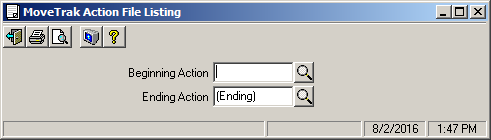
Field Descriptions
Name |
Description |
Beginning |
The first action to include in the report, or (Beginning) for the first action. |
Ending |
The last action to include in the report, or (Ending) for the last action. |
Examples
You want to place a follow-up call with the shipper five days after the delivery date.
1.Select the Date option.
2.Select the Date on which this actions is based.
3.Enter the number of days you want to wait before contacting the shipper in the Start Day field.
4.Since you want to contact the shipper after this date, be sure that the 'Before Action Date' check box is NOT checked..
You want to verify the survey information after the survey is completed.
1.Select the Based on Action option.
2.Select the Trigger Action. In this case, survey.
You want to contact the shipper every two days until the ship date is entered.
1.Select the Empty date field option.
2.Select the Date you want to check to determine if this action should be activated.
3.Enter the Frequency of the contact. In this example, a 2 would be entered.
You want to confirm the load date two days before the shipment is scheduled to be loaded.
1.Select Date as the Action Source.
2.In the Date Options sections, select the Date that this option will be based on. In this example the preferred load date was selected.
3.Enter '2' in the Start Day. and check the Before Action Date box. This will indicate that you want this action to be due 2 days before the preferred load date.