The MoveTrak Category File is used to set up pre-defined groups of Actions called "Categories" which can be used when adding MoveTrak tasks to orders. Categories are most useful when you have a specific combination of actions that are used very often. In this case, rather than having to add the same set of actions each time, it is possible to set up a category that includes these actions. When defining the task, adding a category will add all actions within that category to a task. The actions can then be individually modified as needed.
An added benefit of setting up categories is that you are able to define default categories that are automatically setup for new orders as they added to Vans. This is most useful in ensuring that all orders get setup in the MoveTrak system with at least a default set of actions.
Screens
Name |
Description |
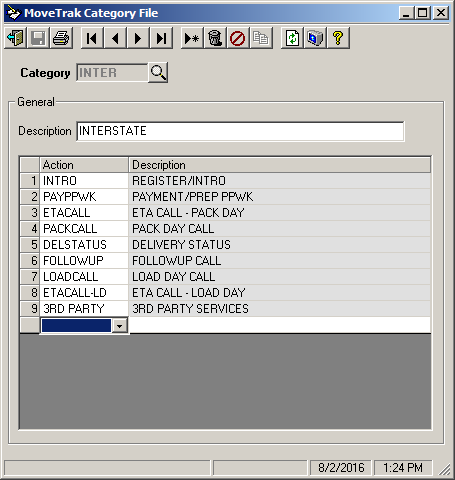
This screen is used to assign actions to a category. |
|
The category report can be printed by this form to either a printer or to the screen. |
To edit or add a new category:
The following steps will guide you through adding or editing categories. If you wish to make a copy of a category, refer to the Copy From Category instructions.
1.Select Category File from the Maintenance group.
2.Enter the Category code to add or change, or use the  icon to search existing categories. If adding a new category, enter the category code, and press the ENTER or Tab key to add the actions.
3.You may add up to 32 actions to a single Category. There are two ways to add an action, click on the last (Blank) line in the Action grid, or position the cursor over the grid and click the right mouse button and choose the Insert Line option.
After doing this, select the Action code to add. The description for each action will be defaulted and can not be changed.
4.Click the  icon to save the category record.
Category File
Field Descriptions
Name |
Description |
Category |
A category code must be assigned to each category to uniquely identify it in the system. The category code can be up to six (6) characters in length and each category must have a unique code. |
Description |
The field contains a description of the category. The description can be up to forty (40) characters in length. This description will only appear in the lookup form when adding categories to a task and in the Category report. |
Action |
These field are used to select the actions to be included in a category. Up to 32 actions can be assigned to a category. The actions must first be set up in the Action File. |
Description |
This is the Action description and is defaulted from the Action file when an Action is selected. This description can not be changed through the category file maintenance or through the task file maintenance. |
To make a copy of an existing category:
1.Select Category File from the Maintenance group.
2.Enter the Category code for the new category and press the ENTER or Tab key
3.Rather then editing the actions, press the  copy from icon. (This option is only available when adding a new category.) This will open the open the Copy From Category window:
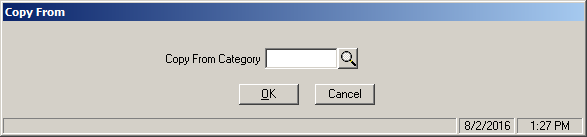
4.Enter the Category code of the category you wish to copy or click the lookup icon to search for the category you wish to copy. Once you have entered or selected the source category, press  to update the new category or
  to return to the category entry screen without updating the new category.
5.At this point, you may add or edit Actions as needed.
6.Click the icon to save the new category record.
Category Report Screen
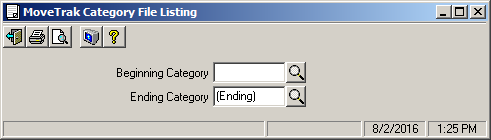
This form will print a report of the actions contained in a category to the screen by clicking the Print Preview  icon, or send the report to a printer by clicking the Printer icon.
Field Descriptions
Name |
Description |
Beginning |
Select the first Category to include on the report or leave blank (displayed as Beginning) to start the listing with the first Category in the file. |
Ending |
Select the last Category to include on the report or leave blank (displayed as Ending) to end the listing with the last Category in the file. |