This form allows an administrator to set tab stops for any form (by user), to make the tab stops the same for users assigned to a group, and to determine the order of the tab stops. Tab stops can also be set on-the-fly using the Quick Tab Stop function.
To set the tab stops for a form:
1.From the System menu group. Click on the Maintenance menu and select the Tab Stop menu option.
2.Select the Login ID of the user for which you want set the tab stops. If you want to set the tab stops for a group, select a member of the group.
3.Select the Form Name of the form for which you want to set the tab stops. The form will load with all the tab information as shown below.
4.Check the box next to the name of the field you want to change. Checking this box will enable a tab stop for the named field. If the box is unchecked, the Tab key will not set focus to this field.
5.If you want to set these tab stops for the user's group, Click the  button to copy the tab stops to the user's group.
6.Once all changes have been made, click the  icon to save the record.
To change the order of the tab stops within a group:
1.Select the field you want to move
2.Select the  icon on the toolbar on the toolbar to move the field up. Select the
  icon on the toolbar to move the field down.
3.Once all changes have been made, click the icon on the toolbar on the toolbar to save the record.
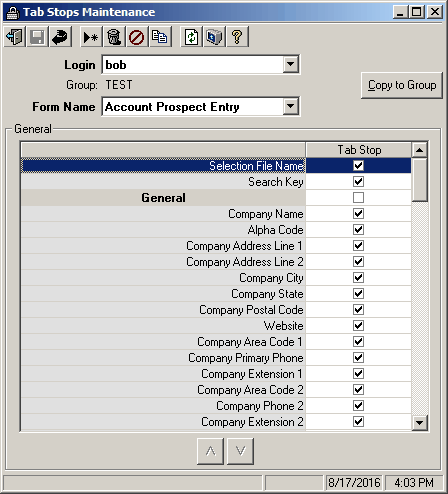
Field Descriptions
Name |
Description |
Login |
Select the user's login name. The changes made on this form will be for the selected user. |
Form Name |
Select the name of the form you want to change. |
|
Click this button to assign the tab stops selected here for every user assigned to the same group as the selected user. |
Tab Stop |
This column has a check box next to the name of each field on the selected form. Checking this box will enable a tab stop for the named field. If the box is unchecked, the Tab key will skip the field. |
Field Names |
The largest part of the body of the form is for the names of the individual fields on the form. If a row is a gray color, like Prospect Entry above, this is not a field on the form, but the heading on a tab. There is no tab setting for these tabs. All the field names between two gray rows (or above gray rows) are in a group that cannot be changed when setting tab order. The tab order can be changed only within a group. |
|
The up and down buttons at the bottom of the form are used for changing the order of the tab stops within a group of fields. If you wish to move a field to a higher place in the tab order of a group, select that field, then click the up button. The field will move up one position. Clicking the button will continue to move the field up in the tab order. The field may likewise be moved down in the tab order by clicking the down button as many times as places you wish to move it down. |