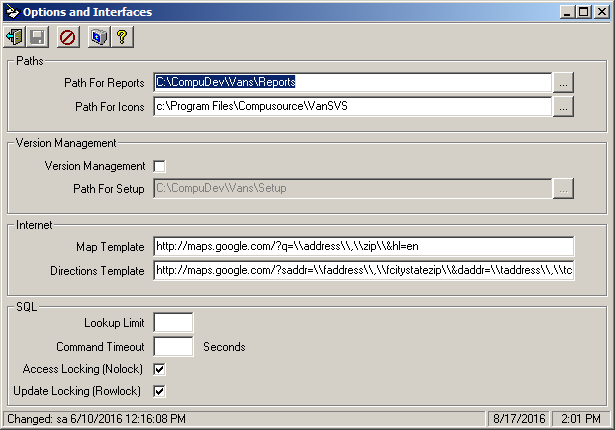
The Options and Interfaces (System) maintenance allows you to define system wide parameters for running Ascente.
Screens
Name |
Description |
Set defaults and options for the system. |
Options and Interfaces Screen
Field Descriptions
Name |
Description |
Paths |
|
Path For Reports |
Defines where the Crystal Reports files exist on your system. This will typically be in a Reports sub-folder under the Vans folder |
Path For Icons |
Defines where the icon files exist that on your system. This will typically be a sub-folder under the Vans folder |
Version Management |
|
Version Management |
Check this box if you want to turn on the version management feature. If turned on, Vans verifies the software and database versions are compatible as well as checking to see if a more current versions of Vans exists on the server. Using this feature is highly recommended. |
Path For Setup |
Defines where the Vans application setup file (VansSetup.exe) used in Version Management exists on your system. |
Internet |
|
Map Template |
Define the Internet map interface for those programs that include a map lookup option. The default is set to Yahoo Maps
Use the following setting for Google Maps: http://maps.google.com/maps?hl=en&q=\\address\\%20\\city\\%20\\state\\%20\\zip\\&tab=wl
Use the following setting for Map Quest:
Use the following setting for Expedia Maps:
Use the following setting for Yahoo Maps: http://maps.yahoo.com/#tt=&q=\\address\\+\\citystatezip\\
Note: There are some Windows settings that can affect the use of the maps:
•If running Vans via Terminal Services, the .RDP file must have Colors set to 'Highest Quality (32-bit)' on the Display tab. •Internet Explorer must have Active Scripting enabled (Internet Options, Security, Internet, Custom Level, Enable Active Scripting) |
Directions Template |
Define the Internet map interface used to give directions between two addresses. NOTE: This is currently NOT used by the system. |
SQL |
|
Lookup Limit |
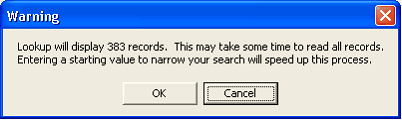
Defines the number of rows where if exceeded in a lookup the system will give the user a warning. 1000 is the recommended value. In the example below a lookup was done on the Postal Code field without entering in a starting value. The system reports that the Lookup Limit has been exceeded and warns the user. If Cancel is selected, the user will be put back at the original field so they can then enter in a starting value. If OK is selected, the system will display all of the records in the lookup grid, but may take a while if the number is very large.
|
Command Timeout |
Defines the number of seconds the system should wait if a lock is encountered. Leave blank or 0 to use the system default (Recommended) |
Access Locking |
Defines if locks should be used on general read commands. It is recommended that this option be checked. |
Update Locking |
Defines if locks should be done on a record (row) basis instead of a page basis (multiples). It is recommended that his option be checked. |