The Colors option allows you to assign colors to various properties in the system. This option is currently only available to set colors for order entry authorities (M/V).
Colors can be assigned to the following display properties:
•Foreground - The lettering of the text. (Black in the example below)
•Background - The area behind the text (Green in the example below) .
•Border - The edges of the box. (Orange in the example below)

Each of the 3 proprieties can then be associated with a certain field on the order. The choices are:
•(none) - Default color only
Once you select a field you can then assign a color to the values associated with that field (ie, you can assign a different color to each authority that you have defined in the system).
Screens
Name |
Description |
This screen is used to add or maintain actions. |
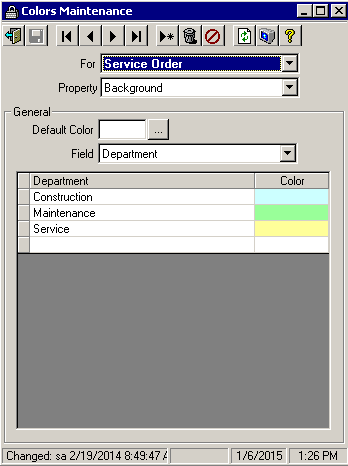
Colors Maintenance Screen
Field Descriptions
Name |
Description |
For |
At this time only authority is the only option so this field is disabled |
Property |
Select from one of the following options: •Foreground - The lettering of the text •Background - The area behind the text •Border - The edges of the box |
General |
|
Default Color |
Select a default color to be associated with the Property you have chosen. This color will be used for values that do not have a color assigned in the grid below. Use the |
Field |
This option is disabled because the default color is all that can be used at this time. |
Grid |
|
Column 1 |
The heading for this column will be set to the Field value you have selected. Click into this column in the grid and select a value from the drop down list. If you do not make an entry for all of the available values, the system will use the Default Color for those not entered in the grid. |
Color |
Click into the Color column to assign a color to the value selected in the first column. The system will automatically display the color palette where you can select a basic color or create a custom color. |
 button to display a
Color Pallete
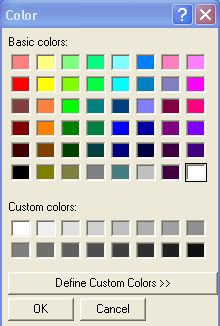
Note: Be careful to NOT select the same color for two or more of the properties. For example, if you set one of the Foreground colors to be red and also set one of the Background colors to be red, you can possibly end up with a display where there is a red box but no lettering (because it is also red).