The Window option is used to display a list of the open screens in Vans and quickly jump to one of them. It can also be used to arrange the screens in particular ways.
Window Options
Option |
Description |
Display windows starting in the upper left hand corner and cascade them on top of each other. |
|
Arrange the open screens across from top to bottom. |
|
Arrange the open screens from left to right. |
|
Arrange all of the open screens that have been minimized (icons) to the bottom left corner of the screen. |
|
1 - Screen 1 Name |
The first open screen name. |
2 - Screen 2 Name |
The second open screen name. |
...... |
List continues for all open screens |
Cascade
Use this option to move all of the open screens to the upper left hand corner and cascade them on top of each other so you can see the title bar of each.
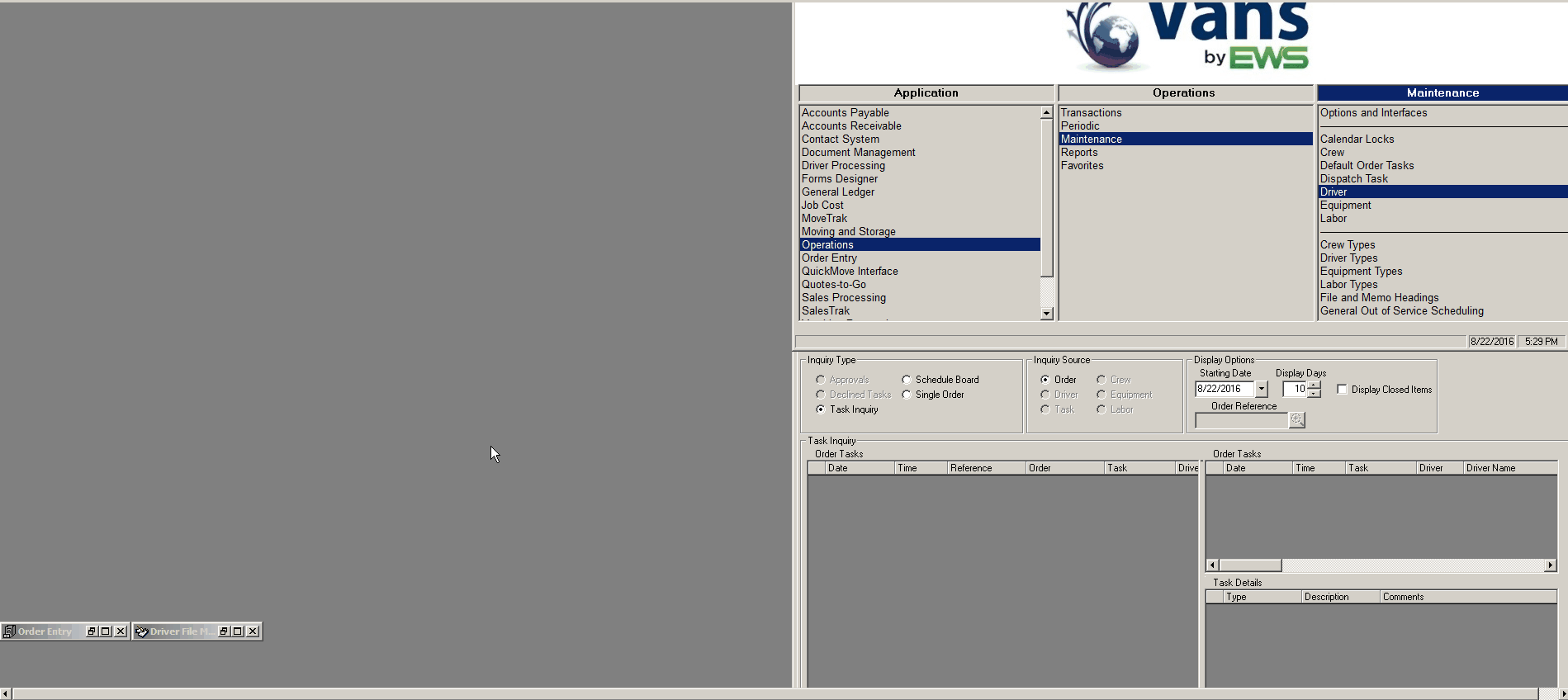
Before Cascade
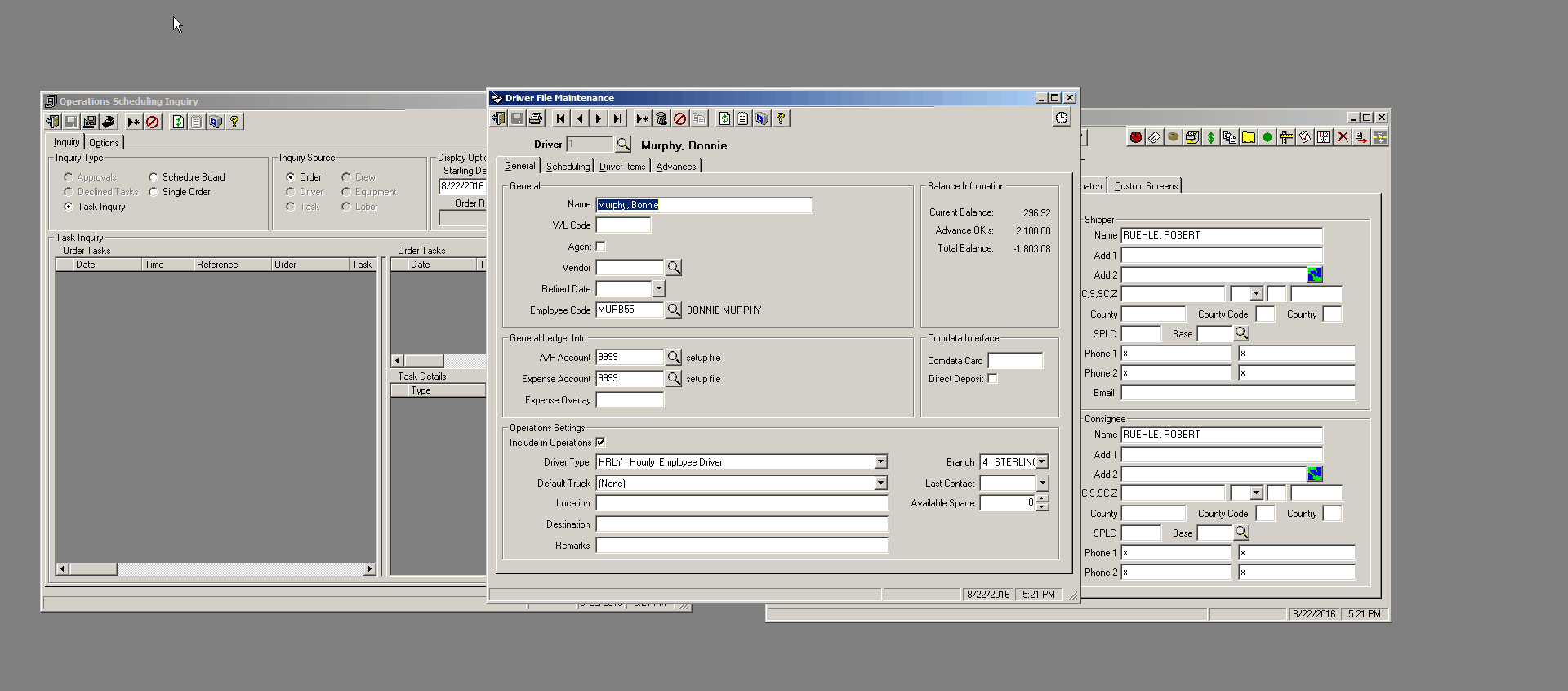
After Cascade
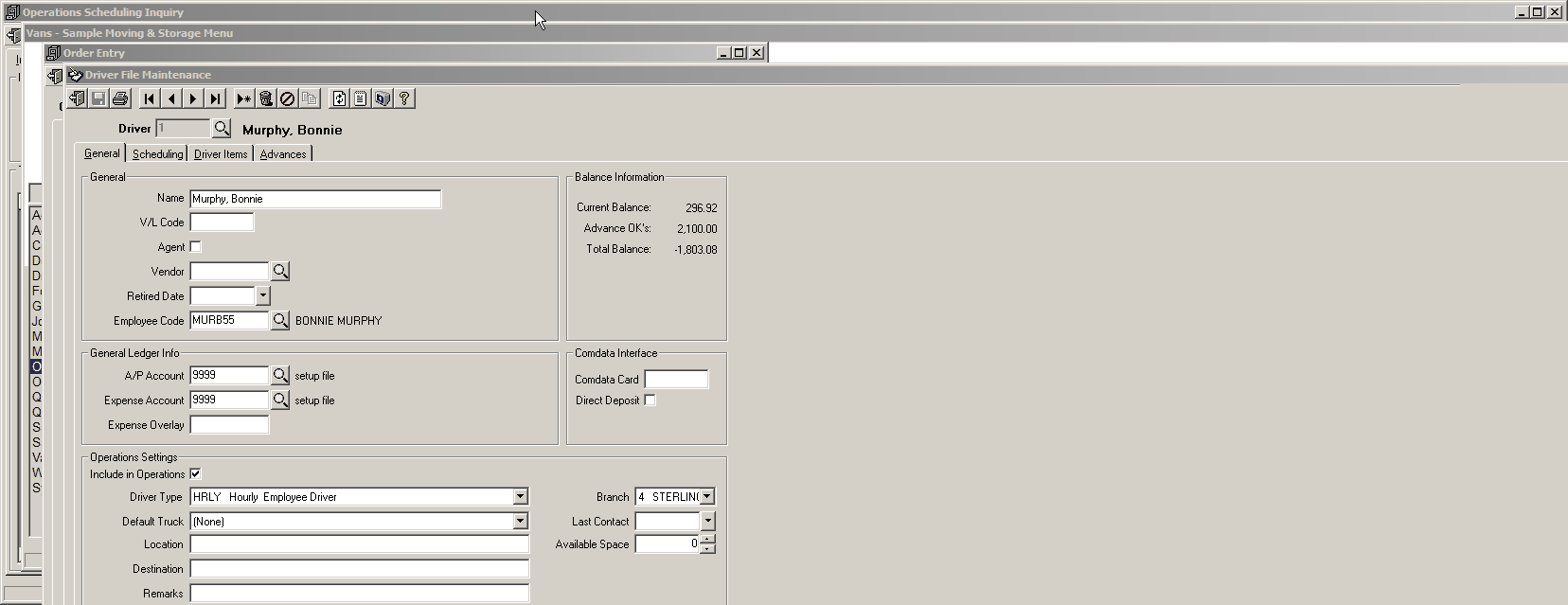
Tile Horizontal
Use this option to arrange all of the open screens to the across the screen from top to bottom.
Before Tile Horizontal
After Tile Horizontal
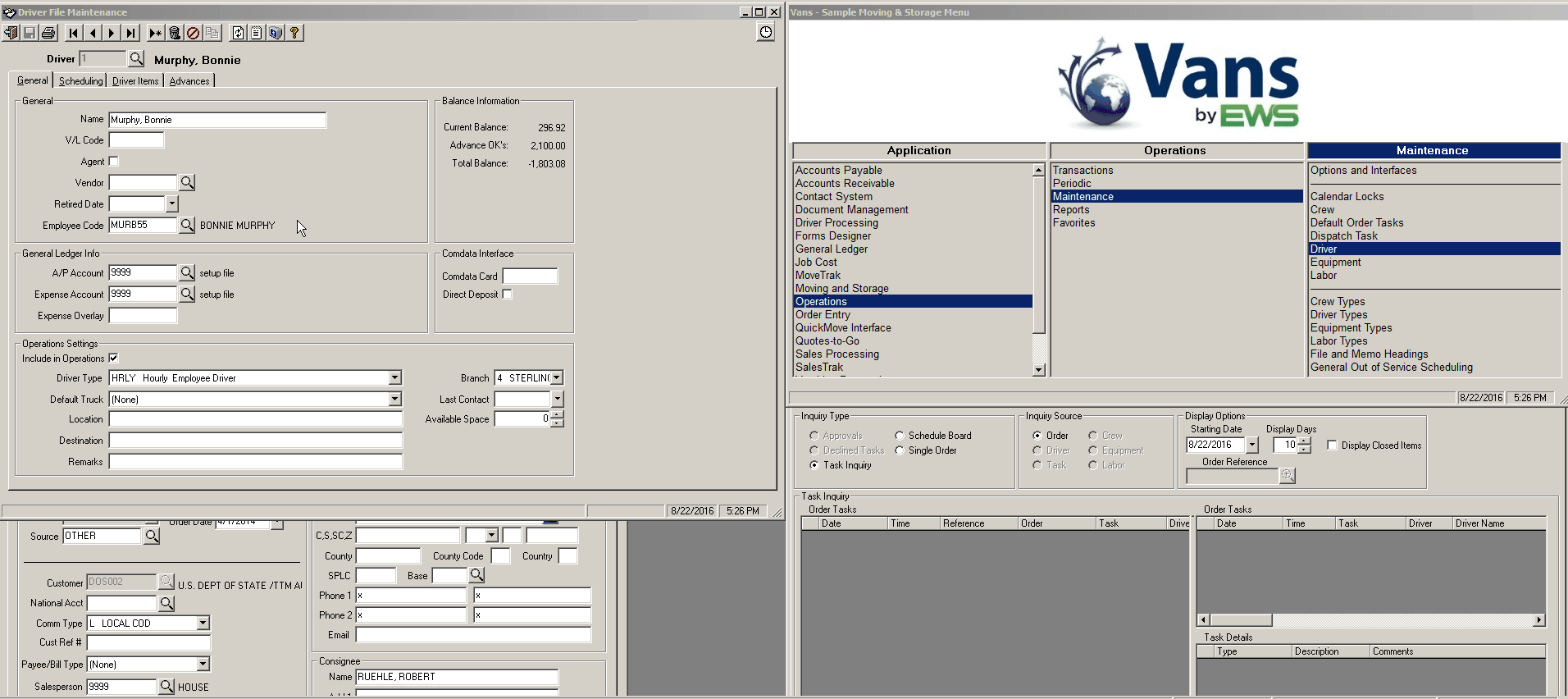
Tile Vertical
Use this option to arrange all of the open screens to the across the screen from left to right.
Before Tile Vertical
After Tile Vertical
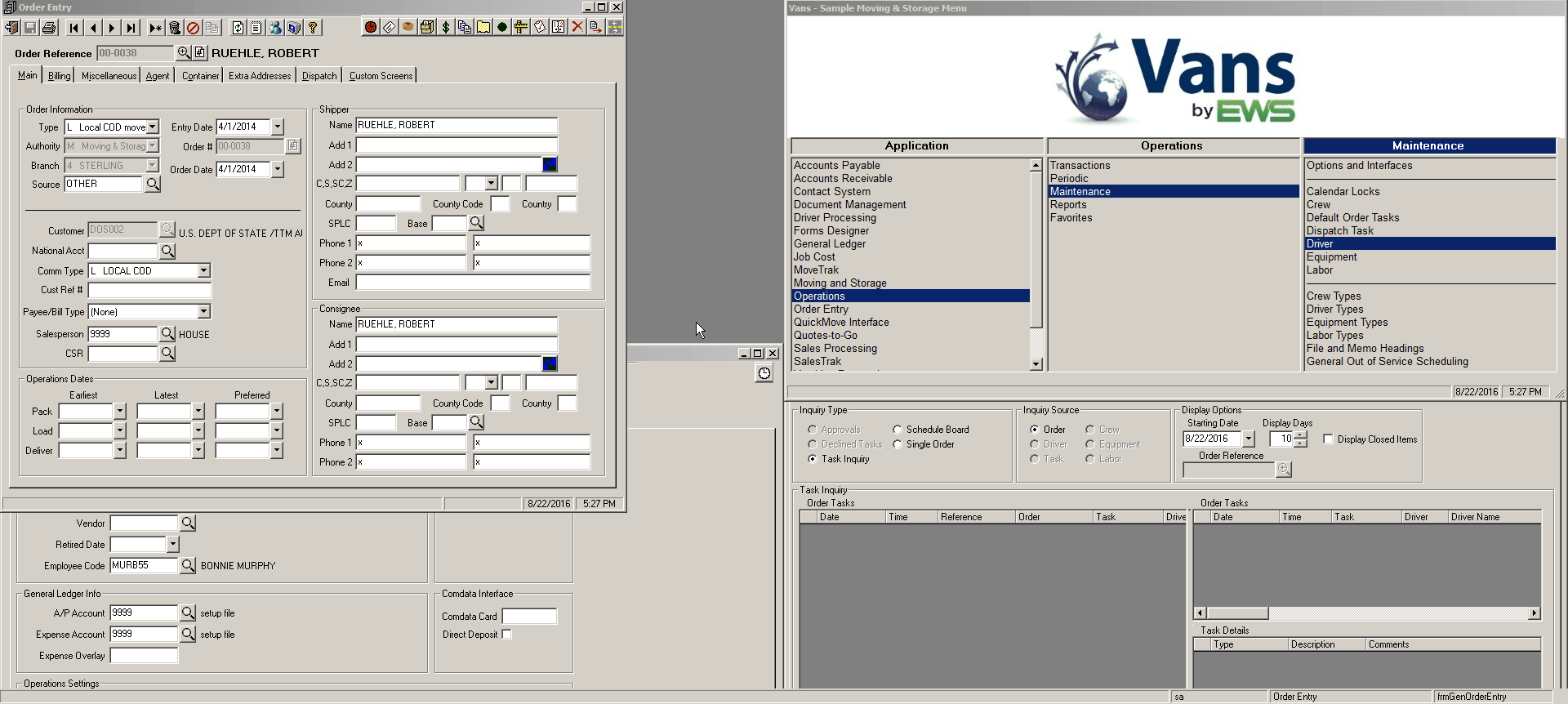
Arrange Icons
Use this option to arrange all of the open screens that have been minimized (icons) to the bottom left corner of the screen.
Before Arrange Icons
After Arrange Icons