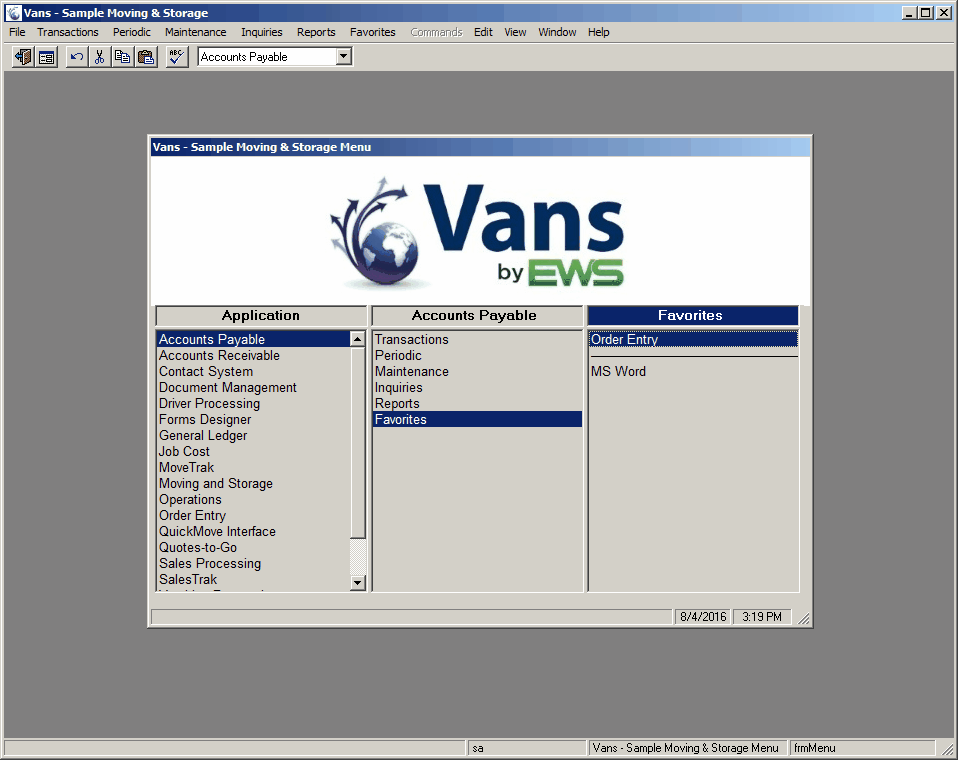
The View option allows you to add/remove toolbars, adjust the menu display format, rename the titlebar or perform a refresh on the currently displayed data. The Menu option can also be accessed via a button on the main Vans toolbar.
Available Options
Option |
Shortcut Key |
Button |
Performs the following function |
Toolbar |
none |
Causes the system to display or remove the toolbar at the top of the main Vans window:
It is highly recommended that this toolbar always be displayed.
|
|
Status Bar |
none |
Causes the system to display or remove a status bar at the bottom of the main Vans window:
This displays the current user's login (in this case 'sa') the current program selected (in this case 'Call Taking') and the system name for the current program (in this case 'frmEntryCallTaking').
|
|
Menu |
none |
|
Causes the main Vans menu to be displayed or removed. This can be displayed in different formats (see Menu Style below).
|
Menu Style |
none |
Lets you select between the Standard menu format or a windows Explorer style menu. Standard Menu example:
Explorer Menu example:
|
|
Rename Titlebar |
Ctrl+T |
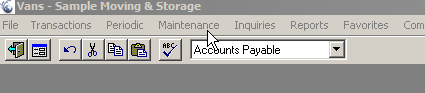
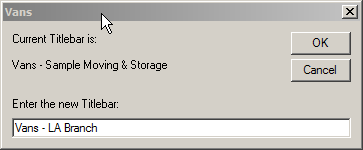
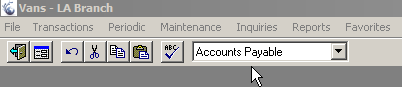
Allows you to rename the title bar at the top of the currently selected screen. This is especially useful in environments where multiple Order Entry and Dispatch screens need to be opened at one time, with each displaying different information. Using the Rename Titlebar function you can set the name of each Call Inquiry screen to be something meaningful - like a branch name.
Before Change
During Change
After Change
|
|
Refresh |
F5 |
This option is used to refresh the data on the current screen. For example, this can be used in the dispatch screen to have the system check for any newly added orders and display them. It can also be used if the F6 drill down option has been used to add a new value to a selection list. The Refresh option will cause the newly added item to be displayed in the list. |
|
Scaling Factor |
Ctrl+F9 |
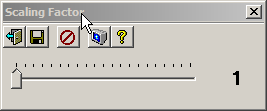
This option is used to scale all forms by a given amount. This is useful on high DPI monitors where text can appear very small.
Set Scaling Factor
A scaling factor of 1 is the default. Setting a scaling factor to any value greater than one, will increase the size of all forms launched after the change by that factor amount. For example, a scaling factor of 1.5 would make the screens 50% larger. A factor of 2 would make them 100% larger, or twice as large as their original size. Note: This setting is retained by user and will still be set the next time you launch the Vans application.
|