The Registration option is used to adjust the number of licensed users for Vans, or to add/remove licensed Applications.
Note: This option should only be used when consulting with your software support person.
Screens
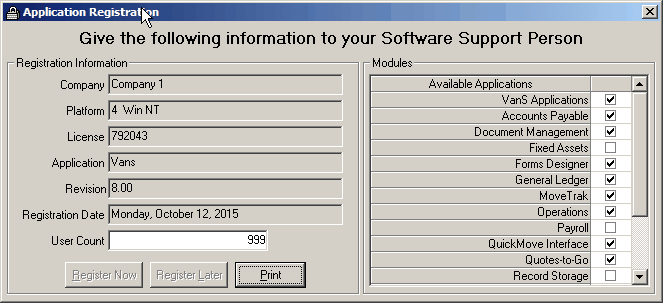
Field Descriptions
Name |
Description |
Registration Information |
|
Company |
The system will display the name of the company as it was entered when Vans was first registered. This cannot be changed. |
Platform |
This will always display '4 Win NT' and cannot be changed. |
License |
This is the license number that the system has assigned and cannot be changed. |
Application |
This will always display 'Vans' and cannot be changed. |
Revision |
The system will display the current major revision number of the Vans application. This cannot be changed. Use the Help->About option on the main toolbar to get the full revision number if necessary. |
Registration Date |
This displays the date that the registration information was last updated. |
User Count |
This will display the current number of registered users and allow a new value to be entered (in case user count has increased). Note that the user count is based on concurrent users of Vans. |
Modules |
This panel displays all of the valid modules for the Vans application and they can be enabled/disabled as necessary. |
Note: If values (user count / modules) are changed, you will be required to register within 7 days.
 Use this button to register after changes have been made. You will need to contact your support representative to obtain a new registration key. This will will only be enabled if changes have been made. Once this button has been clicked the following screen will appear:
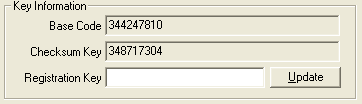
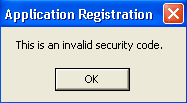
You will need to give the Base Code and Checksum Key to your support representative. They will confirm that these numbers correspond to the user count and modules that have been purchased. If valid you will be given a new Registration Key. Type this into the Registration Key field and click on the Update button. If correct the form will close and you have successfully registered. If not valid the following screen will display:
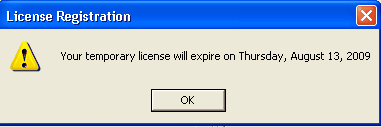
 Use this button to save your changes but register at a later time. You will be able to user the additional license count or modules selected for up to 7 days. If not registered within 7 days the license will revert back to the original. When you click this button you will get a screen similar to this one:
 Use this button to print a screen image of the current registration information to your default printer.