The print setup option is used to where printed output will be sent and also what parameters are used when that output is sent.
Screen
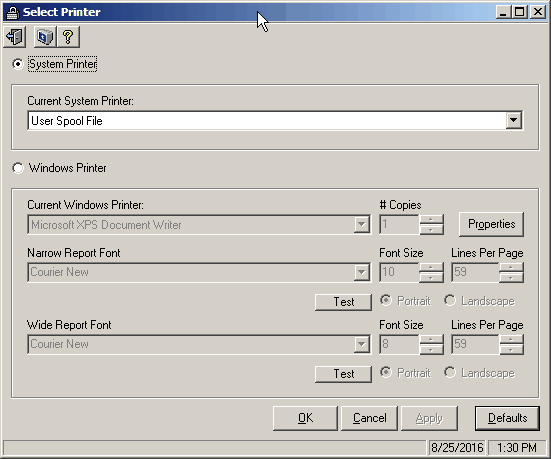
Field Descriptions
Name |
Description |
System Printer |
This will send the print job to a system defined printer. It will be sent directly from the server without the intervention of the local workstation. |
Current System Printer |
Select the desired system printer in this dropdown box. |
Windows Printer |
This will send the print job to a locally defined Windows printer. This option cannot be used for forms (e.g. invoices/statements). |
Current Windows Printer |
Select the desired printer defined in Windows in this dropdown. |
# of Copies |
Enter a number of copies you want for the report (default is 1). |
Will open the Windows Printer Properties dialog to allow specific printer options to be set. |
|
Narrow Report Font |
Dropdown lists all the non-proportional fonts installed on your system and allows you to select which to use for the report output. This font will only be applied to narrow (80 column or less) reports. |
Font Size |
The size of the selected font used for narrow reports. |
Lines Per Page |
The number of lines per page printed on narrow reports. |
Portrait/Landscape |
Narrow reports will print either in Portrait mode (default) or Landscape based on this option button. |
Will print a test patter on the selected printer using the wide font settings. |
|
Wide Report Font |
Dropdown lists all the non-proportional fonts installed on your system and allows you to select which to use for the report output. This font will only be applied to wide (greater than 80 column) reports. |
Font Size |
The size of the selected font used for wide reports. |
Lines Per Page |
The number of lines per page printed on wide reports. |
Portrait/Landscape |
Wide reports will print either in Portrait mode (default) or Landscape based on this option button. |
Will print a test patter on the selected printer using the wide font settings. |
|
OK |
Apply the settings and close the form. |
Cancel |
Forget all changes and close the form. |
Apply |
Apply the changes, but leave the form open. |
Default |
Reset all settings to default values. |


Test Example
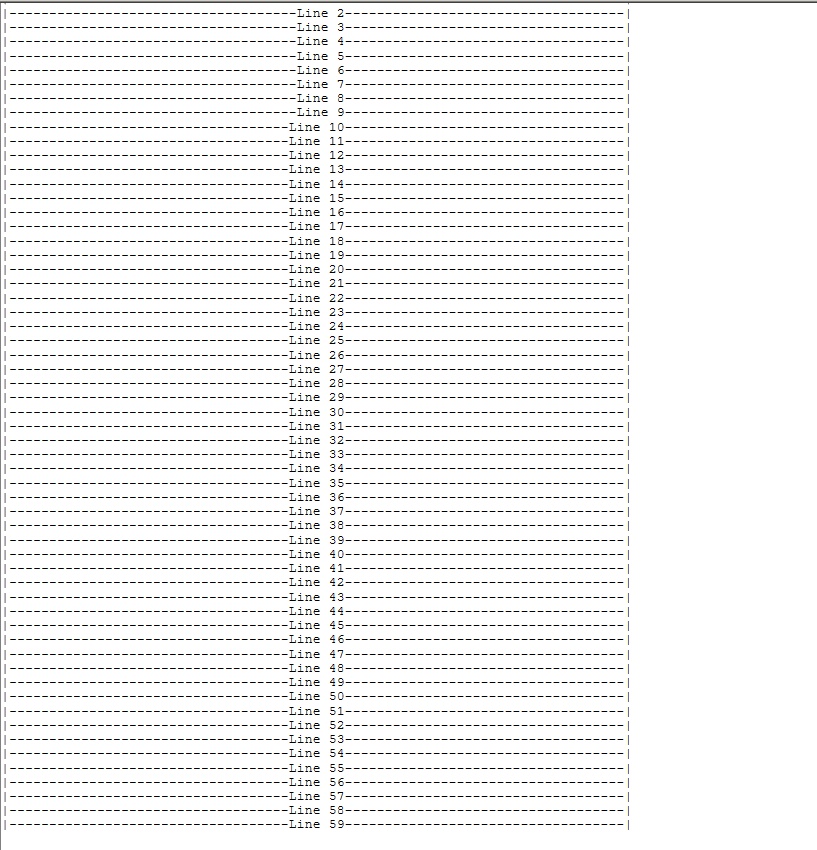
Below is an example of what will be sent to the printer when using the test option. You will get output in your selected font, size and number of lines and it will either be 80 columns or 132 columns wide depending on whether you are testing narrow or wide report options.