The Print Current Window option is used to print a screen shot of the current screen you are working in. This can be used to print a hard copy to give to a co-worker, put in a file or to fax to a customer. This can also be useful when creating a procedures document. The shortcut key for this option is Ctrl+W. Note that this option will be disabled if you have not opened any screens from the menu.
 Tip: This option can also be used to change your default Windows printer. Once the dialog box appears, right click on the printer you want as the default and select the Set as Default Printer option. The default printer will be displayed with the following special icon:
Screens
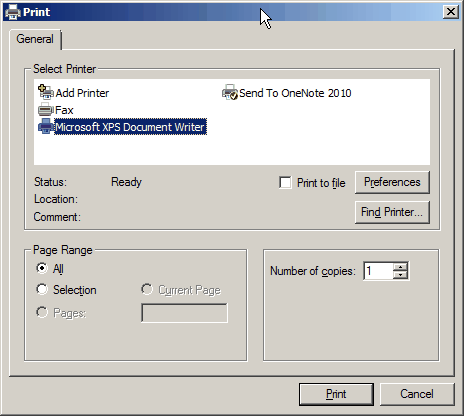
When the Print Current Window option is selected the standard Windows Print dialog box appears. Select the printer the screen image should be sent to. Optionally, you can select a range of pages to be printed, the number of copies and adjust the printer preferences (the options for these will vary depending upon the make/model of the printer).