This form is used to select printers and fonts for the reports.
To select a printer:
1.From the File menu, select Print Setup.
2.Select either a System Printer or a Windows Printer.
3.Select the printer from the drop down box.
4.The properties of the Windows printer can be changed by clicking on the Properties button.
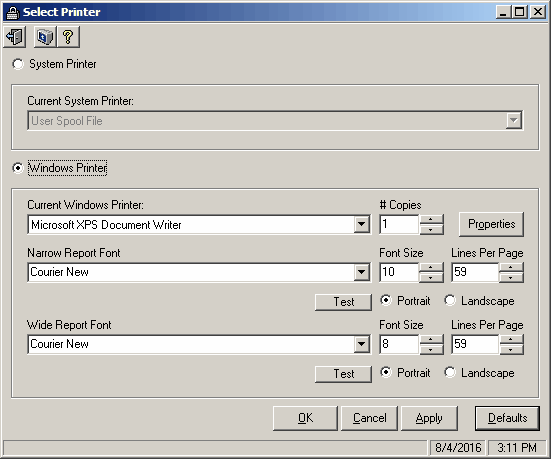
Field Descriptions
Name |
Description |
System Printer |
Select this option to select and use a system printer. |
Current System Printer |
This displays the system printers that have been set up on your computer. Select the printer you want to use. |
Windows Printer |
Select this option to select and use a windows printer. |
Current Windows Printer |
This box displays all Windows printers that have been set up on your computer. Select the printer to which reports should be sent. |
|
This button allows the properties to be set on the selected printer. |
Narrow Report Font |
This box is used to select the font desired for narrow reports. Only non-proportional fonts are available to be selected. |
Font Size |
Enter the font size desired in the box or use the arrows to select available fonts. Only valid fonts can be entered here. |
Lines Per Page |
This field determines the maximum number of lines to appear on a single page. Only valid values may be entered here. |
|
Click this button to print a test page so you can verify the settings chosen. |
Portrait |
Select this option to print the wide format reports in a portrait format. |
Landscape |
Select this option to print the wide format reports in a landscape (long left to right) format. |
Wide Report Font |
This box is used to select the font desired for wide format reports. Only non-proportional fonts can be entered here. |
Font Size |
Enter the font size desired in the box or use the arrows to select available fonts. Only valid fonts can be entered here. |
Lines Per Page |
This field determines the maximum number of lines to appear on a single page. Only valid values may be entered here. |
|
Click this button to print a test page so you can verify the settings chosen. |
Portrait |
Select this option to print the wide format reports in a portrait format. |
Landscape |
Select this option to print the wide format reports in a landscape (long left to right) format. |

