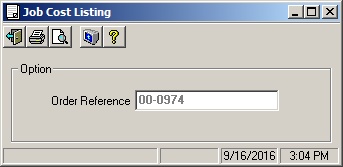
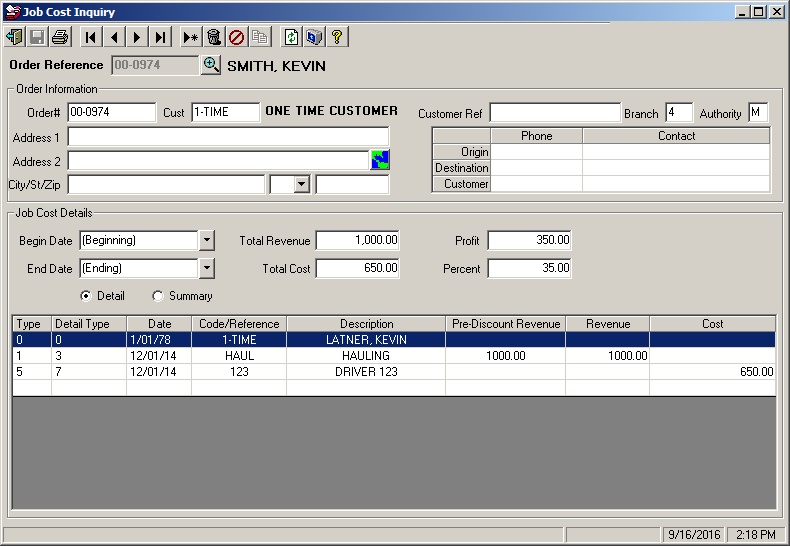
The Job Cost Inquiry is used to display, print, and maintain Job Cost information for a specific order. A date range of detail to display can be specified. You can also display the information in summary or detail form.
Screens
Name |
Description |
Displays all current lock transactions. |
|
Add a new transaction or edit an existing transaction. |
|
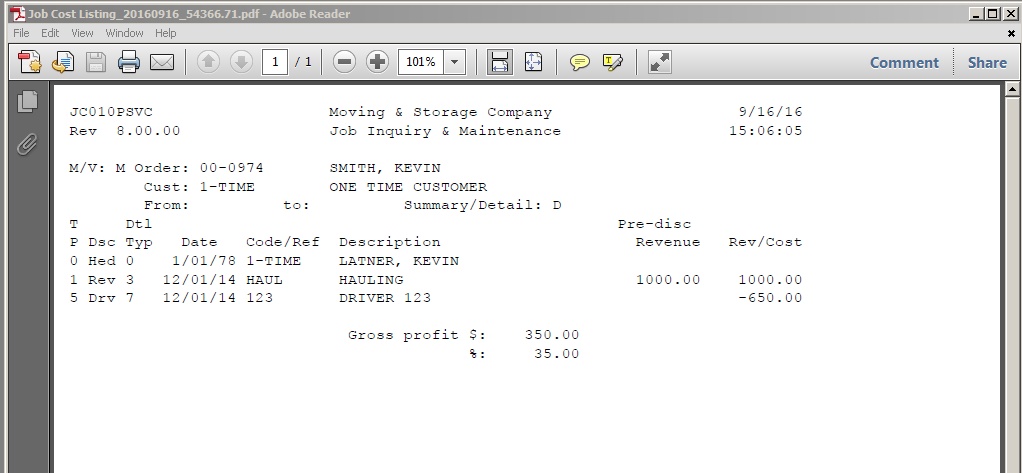
Generate a report of the displayed transactions. |
Job Cost Inquiry
Field Descriptions
Name |
Description |
||||||||||||||||||||||
Order Reference |
Enter the order reference number (if known) to display an order. You can also enter a partial key (starts with) and press the lookup button to find all orders starting with that partial key. |
||||||||||||||||||||||
|
The default lookup sorts the orders by Reference Number, to change the lookup method, position the mouse over the icon and press the right mouse button. A window will be displayed showing the available lookup options (Reference Number, Order Number, Shipper Name or Customer Reference) with a check mark next to the current option. Click on the desired option to change the lookup method. |
||||||||||||||||||||||
Order Information |
This section is display only and contains general order information. |
||||||||||||||||||||||
Order# |
The order# assigned to this order. |
||||||||||||||||||||||
Cust |
The customer number and customer name assigned to this order. |
||||||||||||||||||||||
Address 1 |
The first order address (origin) line. |
||||||||||||||||||||||
Address 2 |
The second order address line (origin). |
||||||||||||||||||||||
City |
The origin city. |
||||||||||||||||||||||
State |
The origin state. |
||||||||||||||||||||||
Zip Code |
The origin zip code. |
||||||||||||||||||||||
Customer Ref |
The customer reference number (if any) assigned to the order |
||||||||||||||||||||||
Branch |
The branch assigned to the order. |
||||||||||||||||||||||
Authority |
The authority (M for local, V for van line) for this order. |
||||||||||||||||||||||
Origin Phone/Contact |
The origin phone# and contact name. |
||||||||||||||||||||||
Destination Phone/Contact |
The destination phone# and contact name. |
||||||||||||||||||||||
Customer Phone/Contact |
The customer phone# and contact name. |
||||||||||||||||||||||
Job Cost Details |
|
||||||||||||||||||||||
Begin Date |
Enter the earliest date to appear in the detail grid. |
||||||||||||||||||||||
End Date |
Enter the latest date to appear in the detail grid. |
||||||||||||||||||||||
Detail/Summary |
The summary version combines all major detail types (1-9) and displays them as a single line with the exception of payroll types (3 and 4). These types include a single line for each class code. The detail version displays each line individually. |
||||||||||||||||||||||
Total Revenue |
The total of all revenue displayed. |
||||||||||||||||||||||
Total Cost |
The total of all costs displayed. |
||||||||||||||||||||||
Profit Amount |
The total profit (Revenue-Cost) displayed. |
||||||||||||||||||||||
Profit Percent |
The profit percent (profit / total revenue) |
||||||||||||||||||||||
Detail Grid |
You can right-click on items in the grid and select Insert, Delete or Edit. Delete and Edit will only be available if an existing non-blank row is selected. |
||||||||||||||||||||||
Type |
This is the type of the transaction. It can be 0-9 and represents the following:
|
||||||||||||||||||||||
Detail Type |
What this column represents varies depending on the type of transaction as shown below:
|
||||||||||||||||||||||
Date |
The date of this transaction |
||||||||||||||||||||||
Code/Reference |
What this column represents varies depending on the type of transaction as shown below:
|
||||||||||||||||||||||
Description |
What this column represents varies depending on the type of transaction as shown below:
|
||||||||||||||||||||||
Pre-Discount Revenue |
If this is a revenue transaction (1 or 9 if entered) and a pre-discount revenue amount exists, it will appear here. |
||||||||||||||||||||||
Revenue |
If this is a revenue transaction (1 or 9 if entered) then the net revenue posted will be displayed. |
||||||||||||||||||||||
Cost |
If this is a cost type (2-7 or 9 if entered) then this will contain the cost amount. |

Add/Edit Transaction
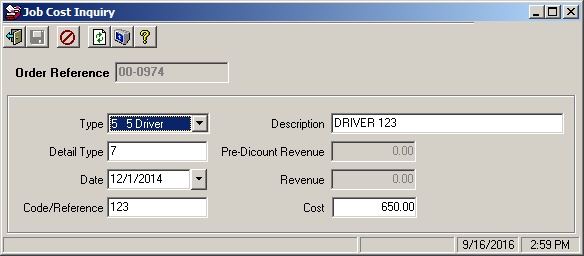
If you double-click on an existing line in the grid, then you will be able to manually edit the transaction and change values as necessary. If you double-click on the blank row at the bottom of the grid to add new records.
Job Cost Listing
If you select the print button  in the toolbar the screen below will open and generate a report of the displayed transactions.