Vans gives you the ability to build a custom Favorites Menu for each user.
To add an existing item to the Favorites menu
Simply right click on a menu item you would like to add. An option will display to add this item to your Favorites Menu:

Once this has been done, a new Favorites option will appear on the menu in the middle column for ALL applications. The items you add to the Favorites Menu will appear in the far right column:
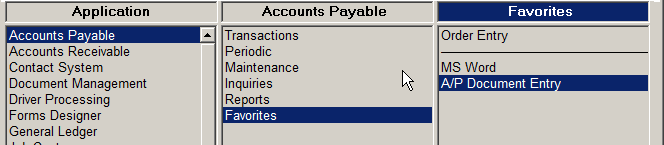
To add a custom item to the Favorites Menu
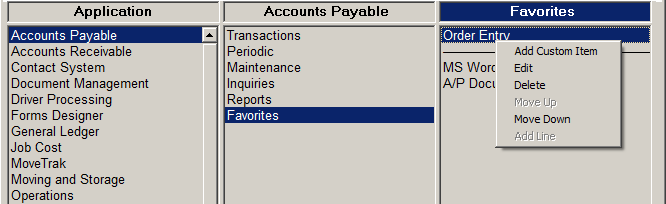
Once you have created the the Favorites Menu, you can add custom items by right-clicking in the right column on the Favorites Menu and selecting 'Add Custom Item'
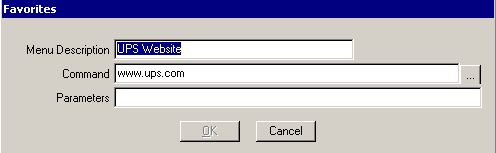
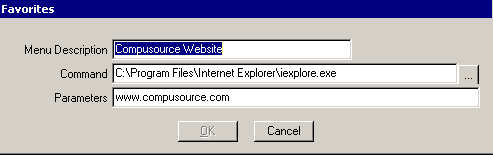
You can add links to websites:
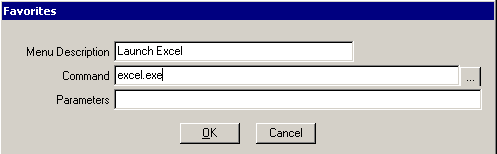
You can add links to external programs:
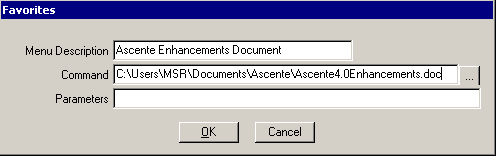
Or you can view a specific file:
You can optionally pass parameters to a program:
Note: If you are running in a Terminal Services environment, the Terminal Server must have the appropriate programs installed to view the file selected. In the above example Microsoft Word would need to be installed in order to view the file.
Also, the Menu Description and Command fields may not be left blank.
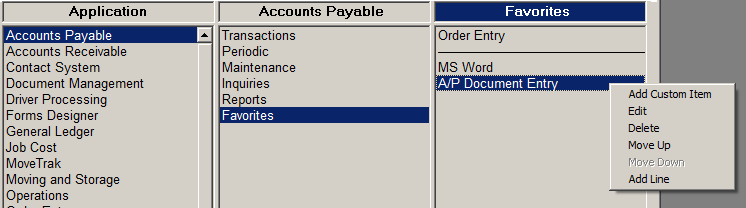
Once you have items on your Favorites Menu you can also do the following items by right clicking on the menu:
•Add Custom Item
•Edit Custom Item
•Delete
•Move Up
•Move Down
•Add Line
The Favorites Menu is also accessible from the Toolbar:

Optionally you can disable the ability to add custom items to the Favorites Menu by user. The User Maintenance screen has a new check box to turn the feature on/off.
Note: If a user is set as an Administrator, they will automatically have the ‘Allow Custom Favorites’ option checked and this cannot be changed.
