This option is used to print and/or view reports that have been printed to the User Spool File. You have the option to find documents by a date range, or by putting in selected search text. Documents can also be deleted by date range. When the screen is first opened, all spool files for the current user will automatically be loaded and available to view.
Screen
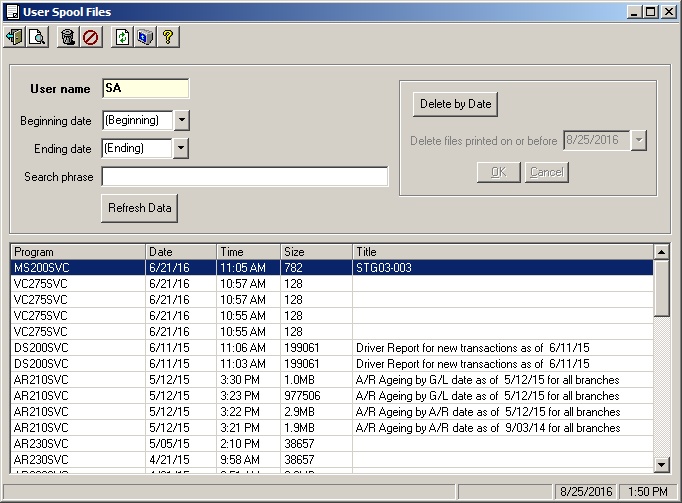
Field Descriptions
Name |
Description |
User Name |
This will display the current username and cannot be changed. Only reports printed to the user spool file by the current user will appear in the list. |
Beginning Date |
Defaults to (Beginning) which will start loading with the oldest on file. If a beginning date is entered, you must select refresh data to reload the document list. |
Ending Date |
Defaults to (Ending) which will load through the latest on file. If an ending date is entered, you must select refresh data to reload the document list. |
Search Phrase |
Enter a word or phrase to search for in the documents. Only documents containing the word/phrase will be returned in the document list. |
Reloads the document list based on the current date range and search phrase criteria. |
|
Select this button to enable the delete by date fields. |
|
Delete Date |
All documents created on or before this date will be removed. |
Press this button after entering your delete cutoff date if you want to remove the documents. |
|
Press this button to cancel the delete by date option. |
|
Document List |
Columns are Program, Date, Time, Size and Description |
View a Document
Select a document or multiple documents (Ctrl + Click). Once selected press the  print preview button. The report(s) will then be displayed as a PDF document. From there, they could be printed, emailed, etc. You can double-click on a document and it will be displayed, and you can also right-click on a document and select 'Print' from the pop-up menu.
Delete a Document
Select a document or multiple documents (Ctrl + Click). Select the toolbar delete button  or, right-click and select delete from the pop-up menu.
Search For Documents
In the search criteria area, enter a date range and or a search phrase and select the Refresh Data button  . Any documents that meet the criteria will appear in the document list. To go back to all documents, just clear the search criteria and press refresh again.
Delete a Range of Documents
Select the delete by date button  and then enter the cutoff date for the deletion. All documents created on or before this date will be removed. Press the
  button to delete, or the
  to quit without deleting documents.