This form is used to select the company for which data will be accessed while using Vans. If there is data for two or more companies, this form will show automatically before the main screen can be accessed. You may select a company by double-clicking the desired selection, by highlighting the desired selection then clicking the Enter key, or by highlighting the desired selection then clicking the Save button in the toolbar of the form. If the application is just being loaded, you MUST select a company if this screen appears. The first company in the list will be selected by default, and if the screen is closed, will be the company selected.
To change companies in Vans:
1.If Vans is already running with a company selected, from the File menu, select Login to Different Company.
2.Select the company from the Available Companies.
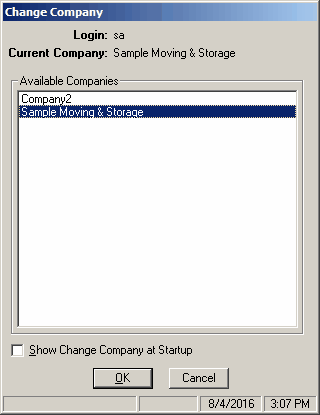
Field Descriptions
Name |
Description |
Login |
This box displays the name of the user currently logged on this computer. |
Current Company |
If the application is just being loaded, this text box will display Not Defined. If this form is selected while the application is already running, the company currently loaded will show in this field. |
Available Companies |
All available companies will be displayed. Select the company you wish to log into by either double-clicking on the company description or clicking on it a single time, then click the |
Show Menu at Startup |
Check this box if the Select Company window should be displayed automatically each time you start Vans. |
 icon.
icon.
This list box shows all the companies that have data for Vans. Selecting a different company than the one currently being used will cause all open forms to close (first giving you the chance to save any changes), then reload the data for the selected company. If there is a company currently selected, this form can be exited without causing any changes.