 to
open the menu and choose “Customizations.”
to
open the menu and choose “Customizations.”This section lists the features, enhancements, and fixes added to MoversSuite and MoversSuite integrations.
BI Tool
|
|
New view: Order History Report |
The new view, Order History Report, is available to BI Tool users and provides access to all the data visible within the Order History screen, such as Changed, ChangedBy, ChangedIn, ChangedOn, and ChangedTo data. This view is found within the Business Category “Order Information” when creating a BI Tool Data Sources.
The complete list of the data available within the Order History Report view is as follows:
|
Column |
Description/Field Location |
|
OrderId |
Primary key on the Orders table used to identify a specific order record. |
|
OrderNumber |
Order Number for the record. |
|
EstimateNumber |
Estimate Number for the record as shown on the Name, Address, Phone tab. |
|
OrderBranch |
Branch assigned to the order (see Branch Setup for details). |
|
ShipperLastName |
Last Name/Company Name of the record from Name, Address, Phone tab. |
|
ShipperFirstName |
First Name/MI of the record from Name, Address, Phone tab. |
|
OrderStatus |
Order Status for the record. |
|
BookDate |
Book Date of the record as shown on the Move Information tab. |
|
CreatedDate |
Created Date of the record as shown on the Move Information tab. |
|
Changed |
The name of the field or setting updated. |
|
ChangedTo |
The new value assigned to the Changed field. |
|
ChangedBy |
The full name of the user that performed the change (last name followed by a comma and their first name from their Personnel Setup record). |
|
ChangedIn |
The name of the module or process that the change occurred in. This list includes modules such as “Order Information” and “Office & Industrial” and also includes “MSWeb”, “Admin”, and could even include the name of the external process that caused the change. |
|
ChangedOn |
The date and time of the change. |
It is important to use the Date Range filter within Customization when using this view. Since the data returned from this view can be excessively large without a Date Range filter, it is recommended that filters be in place within BI Tool Data Sources > Customization. Additionally, it is also suggested that the Date Range filter use either the BookDate, CreatedDate, or ChangedOn for this view. See BI Tool Date Range for details.
All dates referenced for this view are stored in the database with a timestamp in the following format: YYYY-MM-DD HH:MM:SS.SSS; however, the format used within the BI Tool is YYYY-MM-DD HH:MM. This format is not the default format; therefore, use the instructions below to update appropriate column formats to YYYY-MM-DD HH:MM.
NOTE: Without updating to this format, the date and time will not be available within the BI Tool view“Order History.”
1. Go to the appropriate Data Source or start a new Data Source. (BI Tool Data Sources)
2.
From Main, click to
open the menu and choose “Customizations.”
3. Find the Column Title that needs to be updated to include the timestamp, such as “Created Date” in Figure 1.
4. Make sure Type is set to “Date/Date Time” (or DateTime).
5.
Click the corresponding cell in the Format column and click  to open the menu. Choose
YYYY-MM-DD HH:MM, which is the only option that includes both the date and the
time.
to open the menu. Choose
YYYY-MM-DD HH:MM, which is the only option that includes both the date and the
time.
6. Click the checkmark in the upper right corner to save any changes made on that screen.
7. Be sure to click the checkmark on the Data Sources screen to save changes there, as well.
TIP: See the new BI Tool video BI Tool – Customization which uses the changes required for the new Order History Report as an example. Click the video name to view.
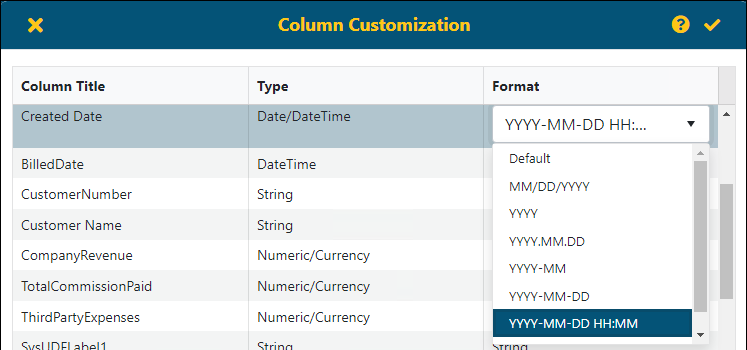
Figure 1: Changing the Format of Column Title within Customization.
RELATED TOPICS:
BI Tool Views List (by Category)
REFERENCE NUMBER: MOV-7411
BI Tool
|
|
SIT Information view updated to include Book Date and Created Date |
The “SIT Information” view now includes the following key order dates:
|
Column |
Field Location |
|
BookDate |
Book Date of the record as shown on the Move Information tab. |
|
CreatedDate |
Created Date of the record as shown on the Move Information tab. |
“SIT Information” is found within the “Order Information” Business Category within the BI Tool.
RELATED TOPICS:
BI Tool View by Field (Order Information)
REFERENCE NUMBER: MOV-7412
BI Tool
|
|
TariffRate displays Rate Plan correctly |
The TariffRate column available from the “Revenue Entry” and “Revenue Entry Revenue Only” views now displays the Tariff/Rate set on an order. This setting is managed through the following:
Order Information (Revenue Entry)
RELATED TOPICS:
REFERENCE NUMBER: MOV-7441