This section lists the fixes made to MoversSuite.
Revenue Entry
Error Code 292 has been reworded to add clarity.
The Error Code of “292” that may appear within the Error Report Log when generating accounting transactions in Revenue Entry has been the updated to include the name of the person along with their Labor Type. This was done to help clarify the error, which is a mapping issue related to a Commissionable Employees record along with other order settings.
The syntax of error 292 now shows in in the following format (where the numbers in brackets reference MoversSuite data):
Item Code of {1} is not mapped for Labor Type of {2}, Move Type of {3}, Commodity of {4}, and an Authority of {5}.
Example:
Item Code of 4000 is not mapped for Labor Type of Shannon Richards (Sales), Move Type of Local, Commodity of HHG, and an Authority of Van Line.
INTERNAL REFERENCE:
MOV-665
MSWeb
Crates added through the legacy application can now be edited through MSWeb.
Crating Information added within the desktop legacy MoversSuite application was not able to be edited within MSWeb.
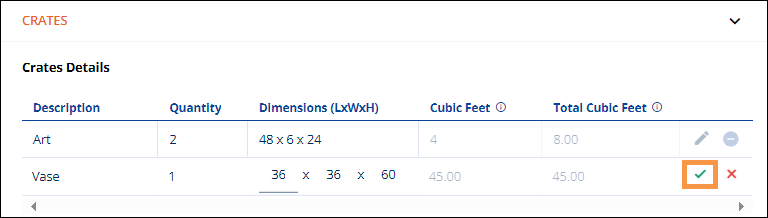
In the example below, the “Vase” crate was added in the legacy product, but it did not have sizes entered for that crate. Then, from within MSWeb, sizes were able to be added by editing the line, entering the dimensions, and then clicking the checkmark to save.
Figure 5: Crating Information through MSWeb
All is now working as it should be.
NOTE:
Crating Information show as its own standalone component called Crates in MSWeb.
INTERNAL REFERENCE:
MOV-6970
MSWeb
Time ranges associated to Survey Date are now correctly ordered.
The application now verifies that the beginning time of a survey is before the ending time. If you attempt to add an invalid date range, the application produces an error.
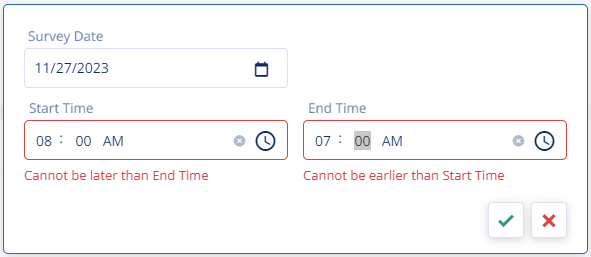
Figure 6: Survey Date entry dialog with invalid time range
INTERNAL REFERENCE:
MOV-6360
MoversSuite Administration: Building Constraints Setup
Sort Order affects the listing order within Building Constraints in MoversSuite Admin.
The listing of Building Constraints Setup records now show based on the Sort Order assigned to the record. Note that if the Sort Order is the same value, then the records sort Question Description in alphanumeric order.
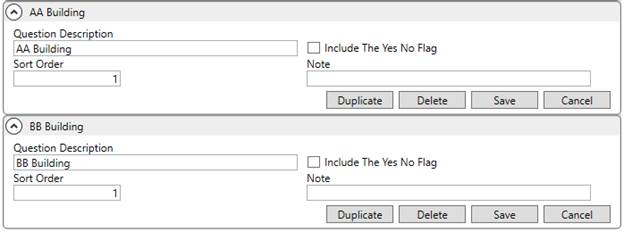
Figure 7: Building Constraints Setup example
Prior to this change, they showed in the order in which the records were added to the system.
NOTE:
When editing records, you can now use the Refresh button to quickly update the listing to reflect the new sorted order. Refer to the Version 2023 R24 Enhancements for an update on the Refresh feature.
INTERNAL REFERENCE:
MOV-6975