
This section lists the features added to MoversSuite.
Reductions
Automatically apply reductions at the order level, instead of manually applying reductions on the Revenue Group or Item Code level.
You can now assign a Reduction Profile to an order to trigger MoversSuite to automatically apply reductions when importing or manually adding revenue items in Revenue Entry. The reduction assignment is based on Item Codes. Use the new Item Code Selection button within Reduction Template Setup to assign Item Codes to Reduction Templates.
To enable this functionality:
1. Build a list of templates through Reduction Template Setup screen (or update existing Reduction Templates by setting Item Codes using the Item Code Selection button.)
2. Create Reduction Profiles within the new Reduction Profile Setup area.
3. Choose a Reduction Profile with the new Reduction Profile selector option found within the Order Information screen in Revenue Entry.
When the Reduction Profile is set on an order and revenue is added (either manually through the Transactions tab or imported through the Revenue Import feature), then reductions for associated Item Codes will automatically be applied. You can view these Reductions when editing items within the Transactions tab.
To update existing Reduction Templates for use with Reduction Profiles, choose a Reduction Template from MoversSuite Administration > Accounting and Financial Services > Reduction Template. Click the new Item Code Selection button (Figure 1). See Item Code Selection for details on the use of the Item Code Selection Screen.
NOTE: To exit out of the Item Code Selection screen, click the X in the upper right corner. For changes to be saved to the Reduction Template, please remember to Save.
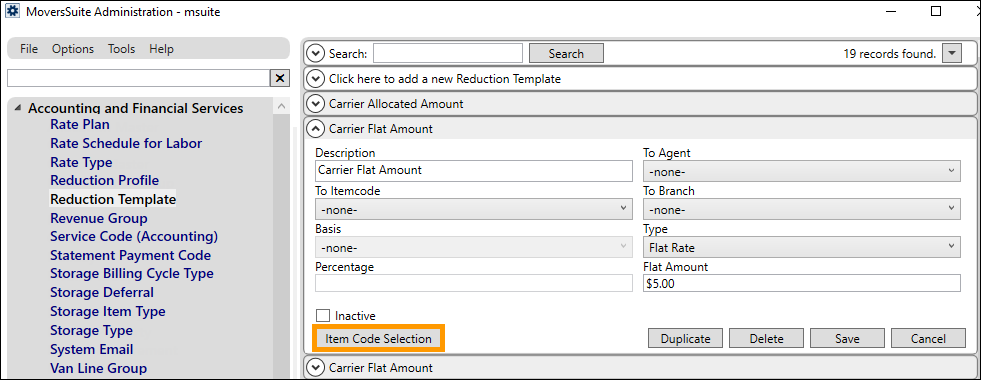
Figure 1: Item Code Selection button on Reduction Template record
Create Reduction Profiles within MoversSuite Administration > Accounting and Financial Services > Reduction Profiles using Reduction Profile Setup (Figure 2).
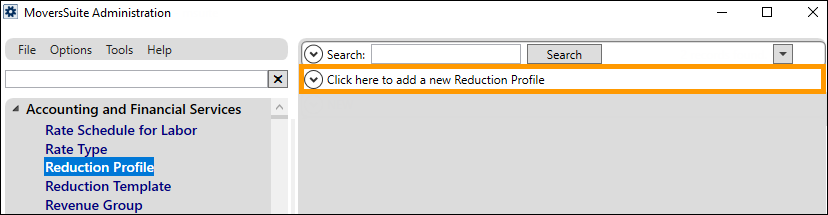
Figure 2: Create a new Reduction Profile
From MoversSuite > Revenue Entry > Order Information tab, use the new Reduction Profile selector to choose the Reduction Profile to be used for this order (Figure 3). The Reduction Profile selector lists all the Reduction Profiles created within MoversSuite Administration > Accounting and Financial Services > Reduction Profile. See Reduction Profile Setup for information on how to create Reduction Profiles.
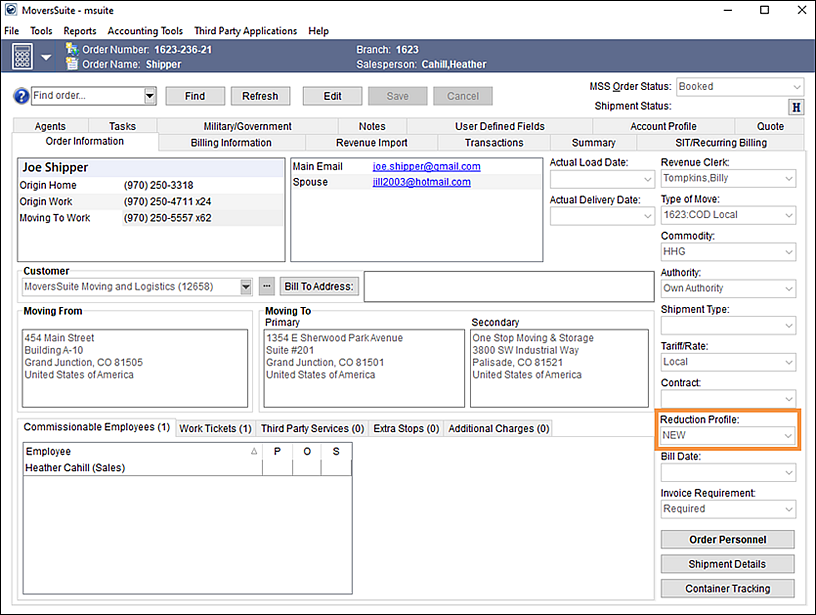
Figure 3: The new Reduction Profile selector
With the Reduction Profile assigned to the order, any revenue created under this order for all Item Codes assigned to that profile, via Reduction Template Setup, will automatically have reductions applied to them when revenue is created in Revenue Entry.
For a more thorough walk through of this process, please refer to the Reduction Profile. This topic details on how the Reduction Profile, Reduction Template and Item Code Selection button all work together to bring you this new feature.
TOPICS:
INTERNAL REFERENCE:
MOV-6588
Commissions
View Sales Hold commission amounts by invoice numbers on the Sales Hold Commissions Management Screen.
The Sales Commission Hold Management screen now details the invoice numbers and commission amounts for those invoices. This information lists under the associated order number for a concise listing of commission amounts and the invoices from which the commission occur.
Expand to see the information outlined, which details Invoice Numbers, Invoice Dates, Invoice Totals, Invoice Balances, and Commission Amounts associated to the orders in the example (below). Each detail shows the sum of commissions that are on the invoice. The “No Invoice” detail shows the sum of those commissions that are not on an invoice.
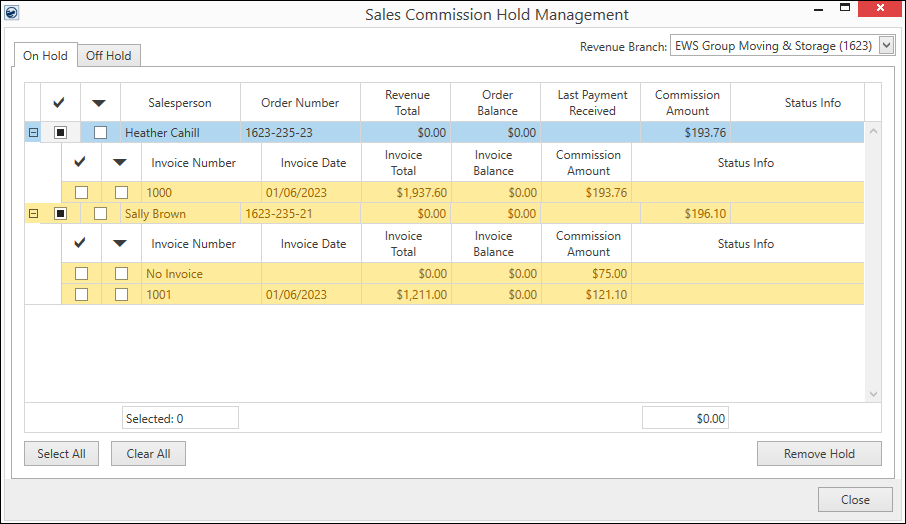
Figure 4: Sales Commission Hold Management screen
From this grid, you can check and remove holds for the entire order (by checking the box on the top row) or by selecting items individually.
The same functionality available to the On Hold tab is available to the Off Hold tab, as well.
Another change with this project is that commission for storage billing can now be automatically placed on hold. This provides a means for managers to review commissions before funds are released. Auto Commissions must be turned on along with having the Sales Commission Hold Setup enabled.
Additionally, the Sales Commission Hold Management grid was also improved by allowing you to export the grid to either a spreadsheet or to a browser window. Refer to the Export To topic for details.

The export options can provide sales personnel a quick way of viewing orders that may need their attention.
TOPICS:
Sales Commission Hold Management
INTERNAL REFERENCE:
MOV-6297
MoversSuite Administration
MoversSuite Administration has a new filter/search function.
Ever find yourself trying to find a setup area in MoversSuite Administration and not sure where it is?
There is a new Filter/Search function that filters the menu by any part of a word. The search produces a list of matching setup titles after entering a single character. It also compares what you enter to anywhere in the title name. Notice in the example below that just “omm” has been entered and the results show any title with “omm” in their name.
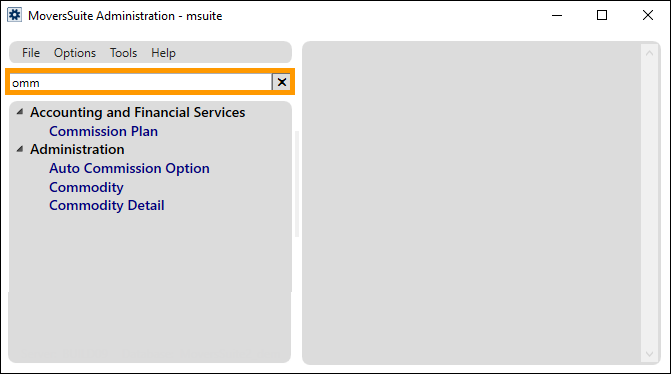
Figure 5: The new filter/search feature within MoversSuite Administration
Even better, right click a title and an Add To Favorites popup appears. Click to add that title into a new Favorites category that appears at the top of the listing for quick reference.
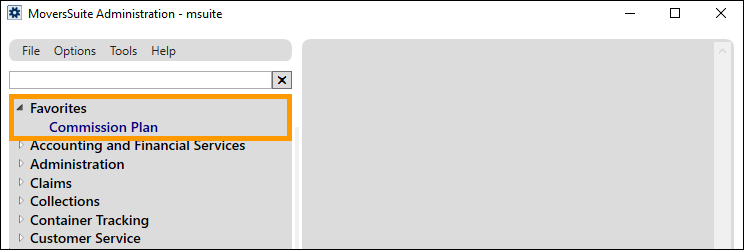
Figure 6: When used, the Favorites category will be at the top of the list
The Favorites category appears once a title has been added. Remove a title from Favorites by right clicking the title and then clicking Remove From Favorites. If there are no titles added to Favorites or if all titles that had been added to Favorites are removed, the Favorites categories disappears.
Of note, the Filter/Search is dictated by assigned roles. Titles will only show for those titles to which you have access.
TOPICS:
MoversSuite Administration Layout
INTERNAL REFERENCE:
MOV-6189