Office & Industrial orders can be managed within MSWeb by accessing the order through the Quick Find.
Security access to the Office & Industrial module within MSWeb requires the security access based on proper branch access for the Order Information module. Users with “Full” access to the “Order Information” module for the branch of the order can make updates to O&I orders. “Read Only” access allows a user to view the data only. This is different from the setup for Office & Industrial on the desktop side where security access is controlled through the setup detailed within Office & Industrial Initial Setup.
Office & Industrial orders within MSWeb have the following within the MSWeb Navigation Menu. Click on a MSWeb Topic Name for details.
|
Name |
MSWeb Topic Name |
|
Order Information | |
|
Job Story |
MSWeb Job Story |
|
Job Information |
MSWeb Job Information |
|
Account Profile |
MSWeb Account Profile |
|
Local Services |
MSWeb Local Services |
|
Communications | |
|
Tasks |
MSWeb Tasks |
|
Send Email |
MSWeb Send Email |
|
Messages |
MSWeb Messages |
|
Error Log | |
|
Third Party Error App |
|
To create an Office & Industrial order within MSWeb:
Currently, Office & Industrial orders are entered within the MoversSuite desktop application within the Office & Industrial module. Creating orders within MSWeb coming soon!
7. Local Services
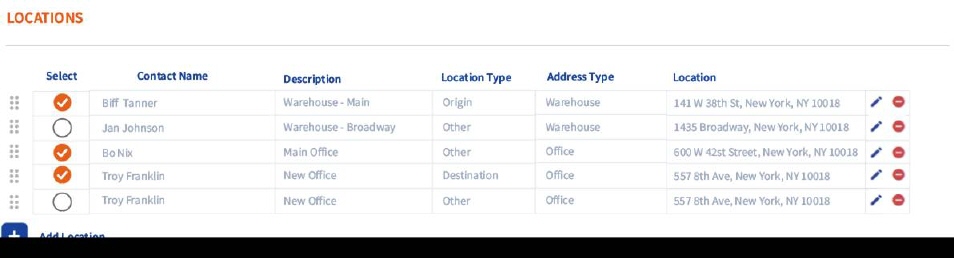
For Office & Industrial orders, “Locations” list instead of “Extra Stops.”
•Service options pull from only those Local Service Type Setup records that have the “Office & Industrial Module” flagged as applicable.
•Options for Locations instead of Extra Stops.
•Origin or Destination Location must be selected in the grid (we will default to show all available locations with just the Origin and Destination selected automatically).
•Ability to sort all stops, edit, and delete locations. IMPORTANT: Changes made to locations on a service also affect those set at the order level. You cannot delete a location that is also in use by another service on the order. However, you can edit it.
Update Local Services as it exists today for Office & Industrials orders. This includes displaying the following sections.
|
Section |
Notes |
|
Local Service Details |
No change |
|
Locations |
Update grid to reflect Locations instead of Extra Stops and to support a Sort Order. |
|
Labor Request |
|
|
Equipment |
|
|
Materials |
|
|
Crates |
|
|
Date Details |
|
Locations on an O&I service would allow you to select which locations are included on the service. The initial list pulls from what displays on the order and include an additional option to select which locations pertain the particular service. Note that changes made at the order level, on the current service, or even a different service all affect each other. However, what is selected for a service is saved for each service, i.e., the data for all services can change except for what has been selected.
Expand Service Instructions. Currently, this field is restricted to 1024 characters. Of note, Special Instructions on the order level have no size restrictions. Refer to case MOV-5118.
Something to consider…
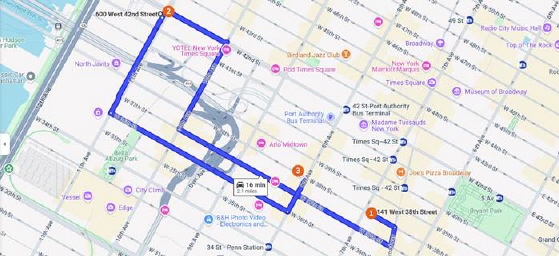
We could generate a map that details the route and possibly tools for getting direction or optimizing the route. The selected locations from the grid above are illustrated on the directions map from Google below.
8. Specifications
Database Changes:
OrderLocations.SortOrder
New column storing the sort order for Locations (1-9999) at the order level.
LocServOrderLocationMap.SortOrder
New column storing the sort order for Locations (1-9999) at the service level.
LSInstructions.Instruction
Update column to be a max. Currently this a varchar(1024). Will need to considering importing and exporting to extraneous systems.
Case MOV-5188 logged to address this.
Anticipated Related Functional Changes:
Update the Create Duplicate Order logic to include new settings.
Verify that the Work Ticket and Local Services bookmarks reflect the location sort order.
Verify that everything works for MSO&ISales.
Verify that the Timeline displays all Office & Industrial details.
Verify that the contacts with email addresses show up as available to new Emails.
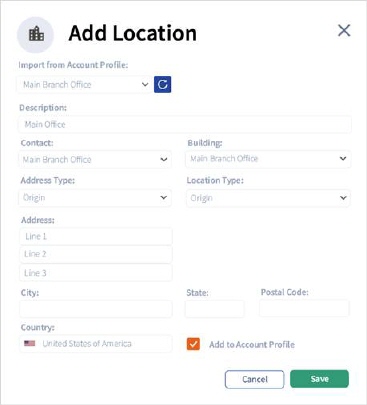
The Add and Edit versions of this dialog allows a user to select and import a location associated with the Account Profile. User must press the update button adjacent to the field in order to populate or update the data. If updating a location, clear out all fields when importing. The update button can be the same one as is referenced for Multi-Select Tasks:

The “Add to Account Profile” option is only available if the record was not originally imported.
If a record was previously imported and the user goes to edit the contact, show the original contact record.