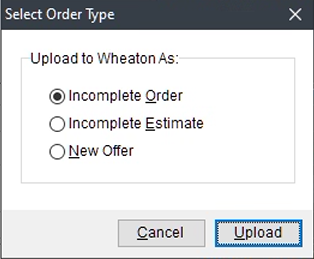
The workflow to send a lead to Wheaton starts out with the entering of a Lead into MoversSuite, being sure to include complete data. With this Wheaton Integration, an option is available from the Tools Menu called Wheaton – Send Lead.
When chosen, select the type of lead that is to be established within Wheaton.
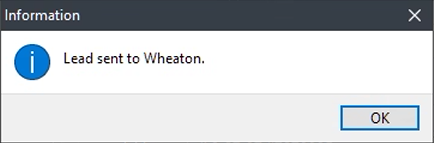
If data passed the initial integrity check on the MoversSuite side, the information is sent to Wheaton and a confirmation prompt appears.
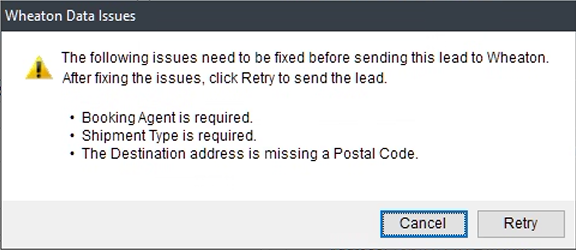
If there are initial validation check failures, you will receive a prompt containing a list of things to fix before attempting a Retry. You can keep this prompt open while working to update the order.
Status updates - including errors returned from Wheaton- will show up in the Third Party Application Error Management screen. A last status ticker does scroll across the bottom of the order, as well.

At some point, the order will update to reflect the order number sent back from Wheaton, as shown in the ticker update below. Once the order is established on the Wheaton side, then changes should only be made to the order through Wheaton.

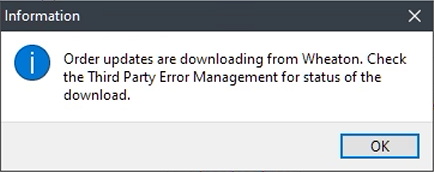
You can request to sync up the data in MoversSuite by choosing Wheaton – Download Updates from the Tools menu. You will receive a prompt indicating that the request was sent successfully.