MoversSuite Administration > Accounting and Financial Services > Reduction Template
Use this setup to specify individual reduction items that can be applied to transactions. This setup defines how the reduction is calculated, effective date range that the reduction is valid for, and the option to reduce the reduction by other reduction templates.
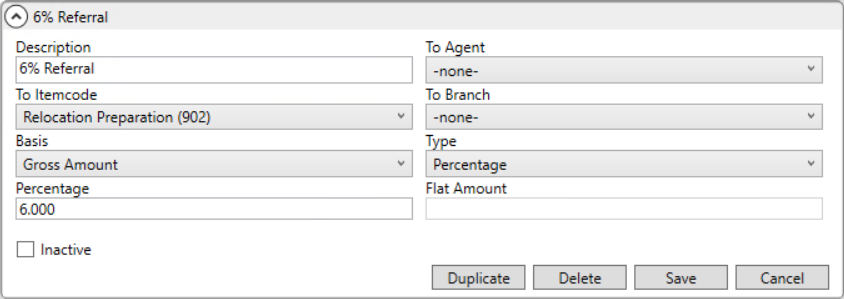
Figure 89: Sample Reduction Template Setup record
These records are available to assign to revenue items through the Reductions screen. With these records, you can charge a reduction to a specific agent type based on branch assignment for the Item Code associated. So, when importing from a van line in Revenue Entry, for example, you can assign the reduction record and the application will build the associated transactions within Add Revenue Group and/or Add Revenue Item dialogs.
Reference the data in the following table when managing these records.
|
Field |
Description |
|
Description |
Enter a title for the template (up to 128 characters). The values entered here will be available as Reduction Template options in Reductions and Add Group Reductions. |
|
To Agent |
Select a default agent (Agent Setup) assignment for the add back to the reduction when reductions are applied. |
|
To Item Code |
Select a default agent (Item Code Setup) assignment for the add back to the reduction when reductions are applied. Add back items include credit card expense or national account escrow. |
|
To Branch |
Select a default branch (Branch Setup) assignment for the add back to the reduction when reductions are applied. |
|
Basis |
If the Type is “Percentage,” then you can define which revenue amount to base the reduction on through one of the following types: Allocated Amount Gross Amount Group Gross Amount Group Invoice Amount Invoice Amount
This setting is used in conjunction with the Percentage setting to determine the dollar amount of the reduction.
Refer to the Basis definition within field descriptions in Reductions for details.
|
|
Type |
Define how to create the amount of the reduction by choosing one of the following types:
Flat Rate Choose this option to define a Flat Amount for the reduction amount.
Percentage Selecting this option allows you to base the reduction amount on a certain Percentage and Basis.
|
|
Percentage |
If the Type is “Percentage,” then set the percent of the selected Basis you wish to create the reduction amount with. For example, if you wish for a 3% reduction based on the amount of the invoice, set the Basis to “Invoice Amount” and set this field to “3.” |
|
Flat Amount |
If the Type is “Flat Rate,” then set the dollar amount of the reduction in this field. For example, if you wish for a $50.25 reduction, then set this value to “50.25.” |
|
Inactive |
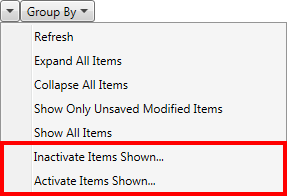
Setting this flag marks this record as inactive and users will not see this record as an option within the options available in MoversSuite, such as within Add Revenue Item. Use this option if you cannot delete the record (because it links to another record) and do not want it available to users in MoversSuite. Options exist through the selected records option menu
(
Figure 90: Options menu for selected records
|
 ), available in the upper
right-hand corner of the screen that allow you to mark all records
displayed in the grid as inactive or active.
), available in the upper
right-hand corner of the screen that allow you to mark all records
displayed in the grid as inactive or active.